
How to embed a widget on your website
Step-by-step guide to adding a review widget to your site.
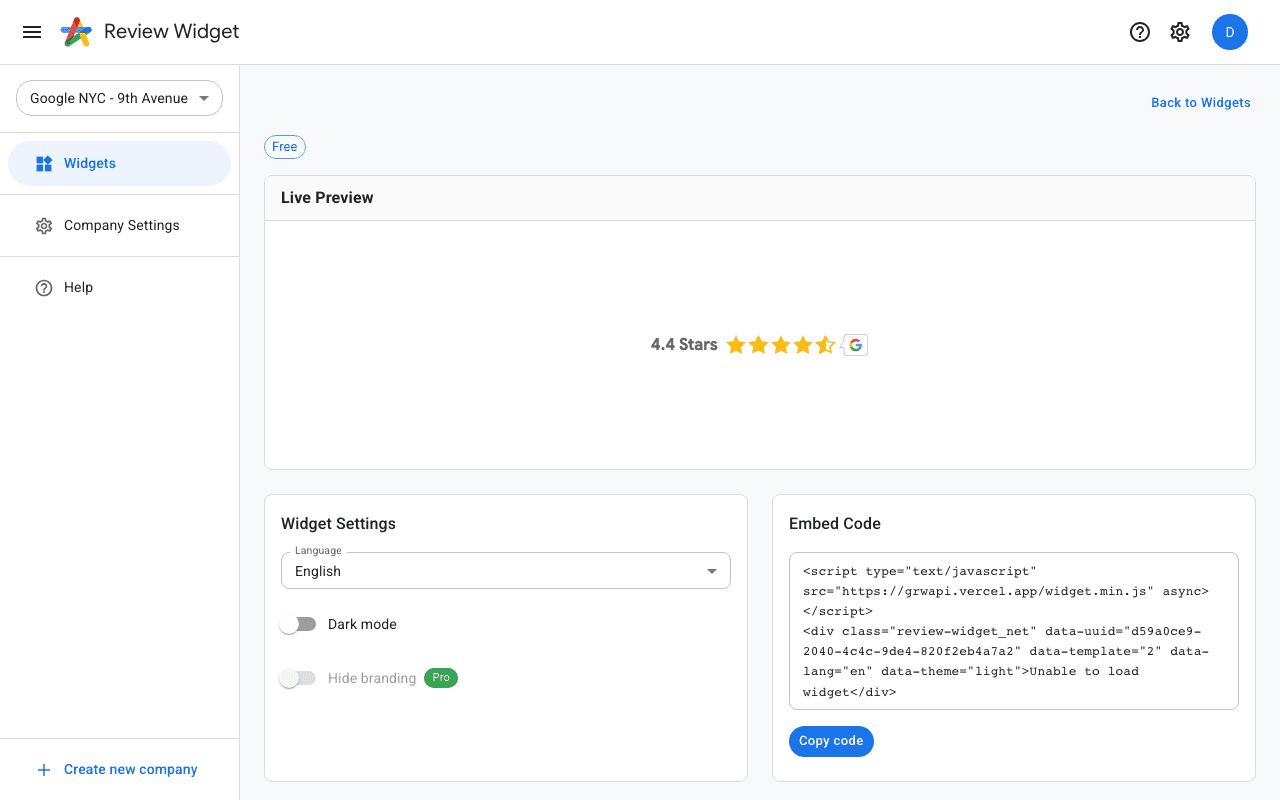
Step 1: Choose a widget
Go to the Widgets page in your dashboard and browse the available templates. Click "Configure Widget" on the template you want to use.
Step 2: Copy the embed code
On the widget detail page you will find the embed code — a small HTML snippet. Click the copy button to copy it to your clipboard.
Step 3: Paste into your website
Open your website's HTML editor (or your CMS page editor) and paste the embed code where you want the reviews to appear. Common locations include the homepage, a testimonials page, or the footer.
Content Management Systems
If you use WordPress, Wix, Squarespace, or another CMS, look for an "HTML" or "Embed" block in the page editor. Paste the widget code into that block. The widget will load automatically when visitors view the page.
Verifying the widget
After embedding, open your website in a browser and verify the widget displays correctly. It may take a few seconds to load on the first visit. If it doesn't appear, see our troubleshooting guide.